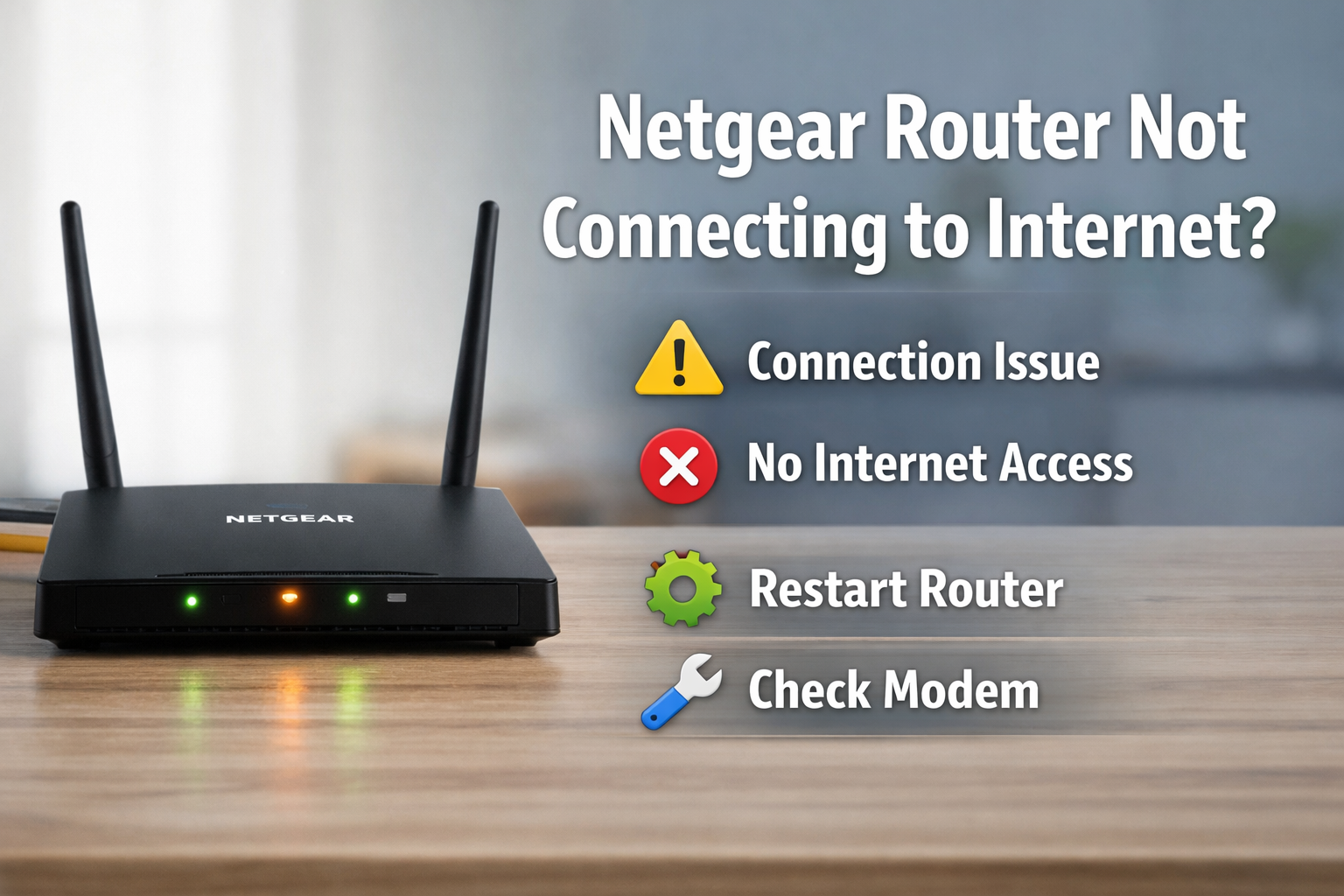
Netgear Router Not Connecting to Internet – Causes & Easy Fixes
If your Netgear router is not connecting to the internet, you are not alone. This is a common issue that can happen due to network settings, firmware problems, ISP outages, or simple hardware glitches.
In this guide, we will explain why your Netgear router may lose its internet connection and walk you through easy, safe, and practical solutions you can try at home. No advanced technical knowledge is required.
Quick Fix Summary
| Possible Cause | Difficulty | Recommended Solution |
|---|---|---|
| Temporary router glitch | Easy | Power cycle the router |
| ISP connection issue | Easy | Check modem & ISP status |
| Incorrect network settings | Medium | Reset network settings |
| Outdated firmware | Medium | Update router firmware |
| Hardware fault | Hard | Contact Netgear support |
Fix 1: Restart Your Netgear Router (Power Cycle)
The first and simplest solution is to restart your router properly.
Steps:
- Unplug the router from the power source
- Wait at least 30 seconds
- Plug the router back in
- Wait 2–3 minutes for the lights to stabilize
In many cases, a simple power cycle restores the internet connection.
Fix 2: Check Your Modem and ISP Connection
Your Netgear router depends on a working modem and active internet service.
What to check:
- Is the modem online and showing normal lights?
- Can other devices connect directly to the modem?
- Is there a known ISP outage in your area?
If the modem has no internet signal, the issue is likely with your service provider rather than the router.
Fix 3: Inspect Router Lights and Cables
Router LED indicators provide valuable clues.
Common light indicators:
- Solid white/green: Normal operation
- Orange or red: Connection or configuration issue
- Blinking lights: Router is booting or updating
Also ensure:
- Ethernet cable between modem and router is secure
- No visible cable damage
- WAN port is used correctly
Fix 4: Update Netgear Router Firmware
Outdated firmware can cause connectivity problems.
How to update:
- Connect to the router via WiFi or Ethernet
- Open a browser and go to routerlogin.net
- Log in to your admin panel
- Navigate to Advanced → Administration → Firmware Update
- Check for and install updates
Do not turn off the router during the update process.
Fix 5: Reset Network Settings (Last Resort)
If nothing else works, resetting the router may help.
⚠️ Warning: This will erase custom settings.
Steps:
- Locate the reset button on the router
- Press and hold for 10 seconds
- Release and wait for reboot
- Reconfigure the router using setup wizard
When to Contact Netgear Support
Contact Netgear support if:
- The router does not power on
- Internet drops frequently after all fixes
- You see persistent red or orange lights
- Router overheats or resets randomly
Hardware failure may require professional assistance.
How to Prevent Future Connection Issues
- Keep router firmware updated
- Avoid placing the router near interference sources
- Use quality Ethernet cables
- Restart router once a month
- Do not overload with too many devices
FAQ
Why does my Netgear router say “connected but no internet”?
This usually indicates a modem or ISP issue, or incorrect network settings.
Does resetting the router delete everything?
Yes. All custom configurations will be erased.
How often should I update router firmware?
Check for updates every few months or when issues appear.
Final Thoughts
A Netgear router not connecting to the internet can be frustrating, but in most cases the problem is easy to fix. Start with simple steps like restarting the router and checking your modem before moving on to advanced solutions.
If the issue persists, professional support may be necessary.
