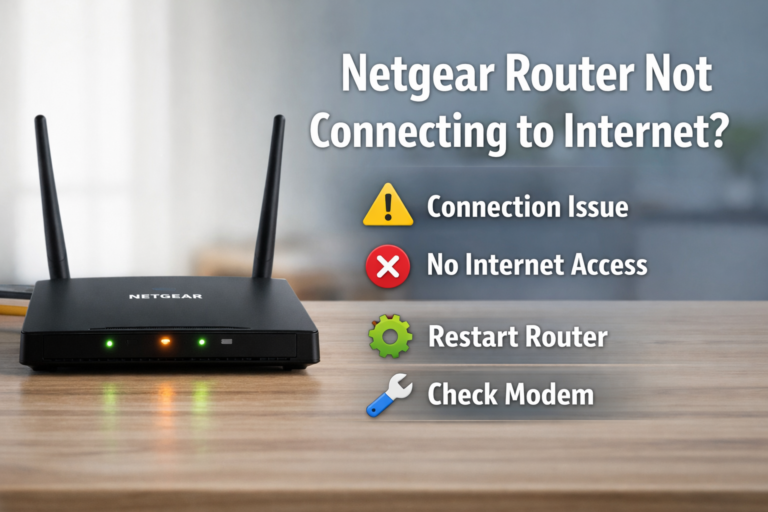
TP-Link Router Orange Light – Meaning & Easy Fixes
Seeing an orange light on your TP-Link router can be confusing, especially when your internet connection suddenly stops working. This indicator usually means that the router is having trouble connecting to the internet or communicating properly with the modem.
In this guide, we will explain what the TP-Link router orange light means and walk you through easy and safe troubleshooting steps to restore your connection.
What Does the Orange Light on a TP-Link Router Mean?
On most TP-Link routers, an orange or amber light indicates one of the following issues:
- The router cannot establish an internet connection
- There is a problem with the modem or ISP
- Network settings are incorrect
- Firmware is outdated or corrupted
The exact meaning may vary slightly depending on the router model, but the orange light almost always signals a connectivity issue.
Quick Fix Summary
| Possible Cause | Difficulty | Recommended Solution |
|---|---|---|
| Temporary router glitch | Easy | Restart the router |
| Modem or ISP issue | Easy | Check modem & service status |
| Loose or faulty cable | Easy | Inspect Ethernet cables |
| Firmware problem | Medium | Update router firmware |
| Configuration error | Medium | Reset router settings |
Fix 1: Restart Your TP-Link Router
A simple restart often resolves temporary glitches.
Steps:
- Unplug the router from the power source
- Wait 30 seconds
- Plug it back in
- Wait 2–3 minutes until the lights stabilize
If the orange light turns green or blue, the issue is resolved.
Fix 2: Check the Modem and Internet Service
Your TP-Link router relies on a working modem and active internet service.
Check the following:
- Modem lights are stable and normal
- Internet works when connected directly to the modem
- There are no ISP outages in your area
If the modem has no signal, the router will continue showing an orange light.
Fix 3: Inspect Ethernet Cables and Ports
Loose or damaged cables can cause connectivity issues.
Make sure that:
- The Ethernet cable is firmly connected
- The WAN port is used correctly
- There is no visible cable damage
If possible, try a different Ethernet cable.
Fix 4: Update TP-Link Router Firmware
Outdated firmware may prevent the router from connecting properly.
How to update:
- Connect to the router network
- Open a browser and go to tplinkwifi.net
- Log in to the admin panel
- Navigate to Advanced → System Tools → Firmware Upgrade
- Install any available updates
Do not turn off the router during the update process.
Fix 5: Reset the Router to Factory Settings
If none of the above steps work, a factory reset may help.
⚠️ Warning: This will erase all custom settings.
Steps:
- Locate the reset button on the router
- Press and hold for 10 seconds
- Release and wait for the router to reboot
- Reconfigure the router using the setup wizard
When Should You Contact TP-Link Support?
Consider contacting TP-Link support if:
- The orange light remains after a full reset
- The router frequently loses connection
- The device overheats or powers off randomly
These symptoms may indicate a hardware problem.
How to Prevent Orange Light Issues in the Future
- Keep router firmware up to date
- Place the router in a well-ventilated area
- Avoid power interruptions
- Use high-quality Ethernet cables
- Restart the router occasionally
FAQ
Is an orange light on a TP-Link router bad?
It usually indicates a connection issue, not permanent damage.
Can an ISP outage cause an orange light?
Yes. If there is no internet signal from the ISP, the router may show an orange light.
How long should a router restart take?
Typically 2–3 minutes.
Final Thoughts
A TP-Link router orange light is a common issue and can often be fixed with simple troubleshooting steps. Start with basic solutions like restarting the router and checking cables before moving on to advanced fixes.